> ## Documentation Index
> Fetch the complete documentation index at: https://devdocs.paywithatoa.co.uk/llms.txt
> Use this file to discover all available pages before exploring further.
# Model Context Protocol (MCP)
> Connect AI assistants to Atoa with the Model Context Protocol (MCP) server, let agents create payments, check status and manage data.
The Atoa **Model Context Protocol (MCP)** server provides a set of tools that AI assistants and applications can use to interact with the Atoa payment API. Process payments, manage customers, handle refunds, access bank feeds, and more — all through natural language or programmatic tool calls.
Connect any MCP-compatible client to Atoa's hosted server. No local installation required.
Run the MCP server locally via `npx`. Works offline and keeps credentials off HTTP.
***
## Prerequisites
Before you begin, make sure you have:
* An **Atoa SDK Token** — follow the [Getting Started](/introduction#step-1-sign-up-for-developer-access) guide to generate one
***
## HTTP Mode (Recommended)
Connect any MCP-compatible client directly to Atoa's hosted MCP server — no local installation required.
**Endpoint:** `https://mcp.atoa.me/mcp`
Pass your SDK token and target environment as request headers on every connection:
| Header | Required | Value |
| ----------------------------- | -------- | ---------------------------------------------------- |
| `Authorization` | Yes | `Bearer YOUR_AUTH_TOKEN` |
| `X-Atoa-Env` | Yes | `sandbox` or `production` |
| `X-Atoa-Payment-Redirect-Url` | No | URL the customer returns to after completing payment |
| `X-Atoa-Ais-Redirect-Url` | No | URL the user returns to after bank authorization |
Use your **Sandbox token** with `X-Atoa-Env: sandbox` and your **Production
token** with `X-Atoa-Env: production`. Mixing a token with the wrong
environment will return authentication errors.
### AI Assistant Configuration
Most AI clients support HTTP-mode MCP connections natively. Use these configs to point your assistant directly at the Atoa MCP server.
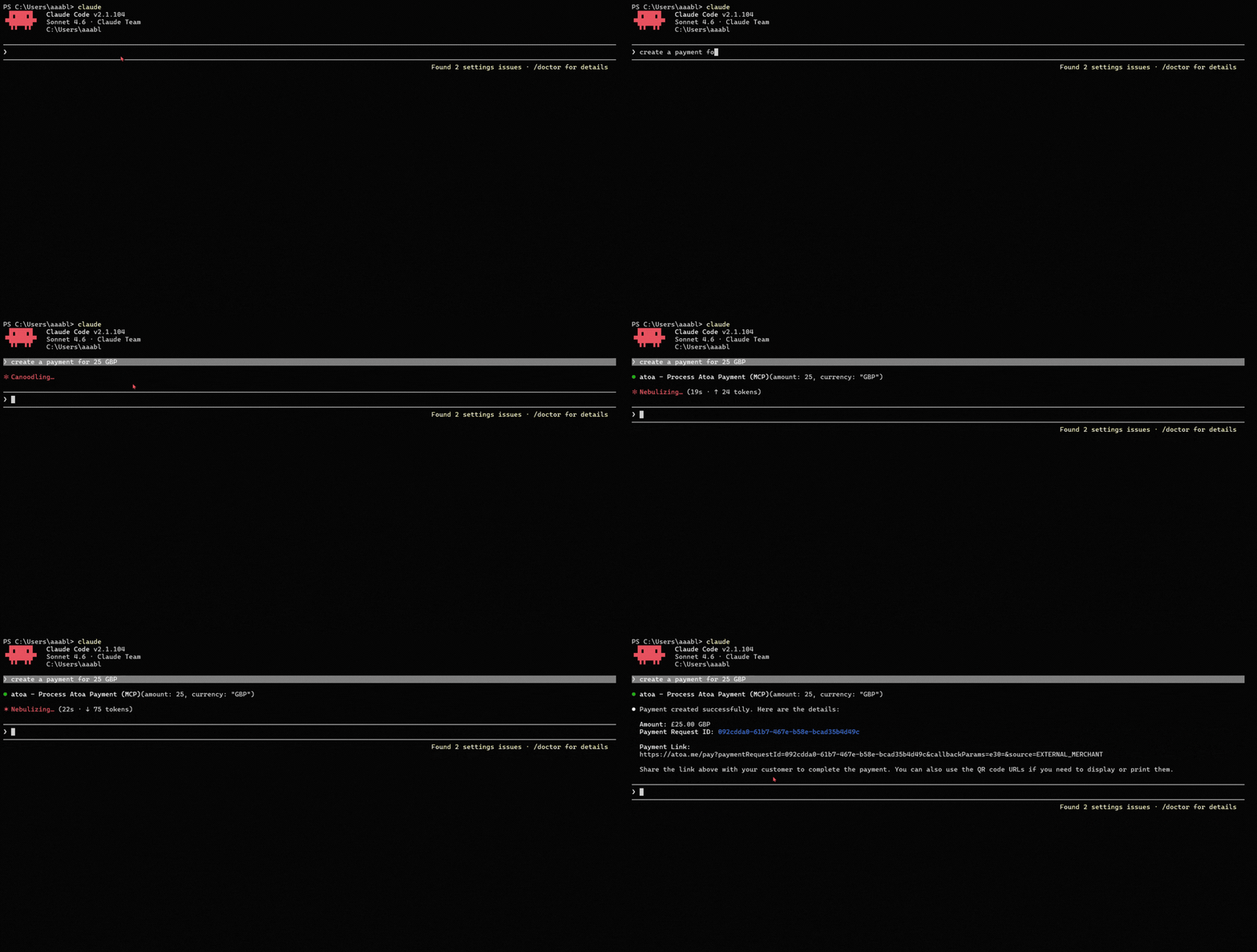
Run from your terminal:
```bash theme={null}
claude mcp add --transport http atoa https://mcp.atoa.me/mcp --header "Authorization: Bearer YOUR_AUTH_TOKEN" --header "X-Atoa-Env: sandbox"
```
 Edit `.cursor/mcp.json` in your project root:
```json theme={null}
{
"mcpServers": {
"atoa": {
"type": "http",
"url": "https://mcp.atoa.me/mcp",
"headers": {
"Authorization": "Bearer YOUR_AUTH_TOKEN",
"X-Atoa-Env": "sandbox"
}
}
}
}
```
Edit `.vscode/mcp.json` in your project root:
```json theme={null}
{
"servers": {
"atoa": {
"type": "http",
"url": "https://mcp.atoa.me/mcp",
"headers": {
"Authorization": "Bearer YOUR_AUTH_TOKEN",
"X-Atoa-Env": "sandbox"
}
}
}
}
```
Switch `X-Atoa-Env` from `sandbox` to `production` (and swap your token) when you go live.
### Connecting Programmatically (MCP SDK)
For web applications and backend services, use the MCP SDK's `StreamableHTTPClientTransport`:
```bash theme={null}
npm install @modelcontextprotocol/sdk
```
```typescript theme={null}
import { Client } from "@modelcontextprotocol/sdk/client/index.js";
import { StreamableHTTPClientTransport } from "@modelcontextprotocol/sdk/client/streamableHttp.js";
const transport = new StreamableHTTPClientTransport(
new URL("https://mcp.atoa.me/mcp"),
{
requestInit: {
headers: {
Authorization: `Bearer YOUR_AUTH_TOKEN`,
"X-Atoa-Env": "sandbox", // or "production"
},
},
},
);
const client = new Client({ name: "my-app", version: "1.0.0" });
await client.connect(transport);
// List available tools
const { tools } = await client.listTools();
// Execute a tool
const result = await client.callTool({
name: "get_stores",
arguments: {},
});
```
### Rate Limits
The HTTP endpoint enforces rate limiting on a per-token basis. Requests that exceed the allowed rate will receive a **429 Too Many Requests** response. If this happens, back off and retry after a short delay using an exponential backoff strategy.
***
## NPX Mode (Local)
Run the Atoa MCP server locally via `npx`. Use this when you prefer not to send auth headers over HTTP, need to work offline, or your AI client does not support HTTP-mode MCP connections.
**Requires Node.js 18+ and npm 9+** (`node --version` to check).
### Quick Setup
The fastest way to get started is the interactive wizard:
```bash theme={null}
npx @atoapayments/mcp init
```
This walks you through a series of prompts and generates the configuration snippet you need to add to your AI client's config file.
### Manual Configuration
Add the following to your AI client's MCP configuration file:
Edit `claude_desktop_config.json`:
* **macOS:** `~/Library/Application Support/Claude/claude_desktop_config.json`
* **Windows:** `%APPDATA%\Claude\claude_desktop_config.json`
```json theme={null}
{
"mcpServers": {
"atoa": {
"command": "npx",
"args": ["-y", "@atoapayments/mcp"],
"env": {
"ATOA_AUTH_TOKEN": "YOUR_AUTH_TOKEN",
"ATOA_ENV": "sandbox"
}
}
}
}
```
Edit `.cursor/mcp.json` in your project root:
```json theme={null}
{
"mcpServers": {
"atoa": {
"type": "http",
"url": "https://mcp.atoa.me/mcp",
"headers": {
"Authorization": "Bearer YOUR_AUTH_TOKEN",
"X-Atoa-Env": "sandbox"
}
}
}
}
```
Edit `.vscode/mcp.json` in your project root:
```json theme={null}
{
"servers": {
"atoa": {
"type": "http",
"url": "https://mcp.atoa.me/mcp",
"headers": {
"Authorization": "Bearer YOUR_AUTH_TOKEN",
"X-Atoa-Env": "sandbox"
}
}
}
}
```
Switch `X-Atoa-Env` from `sandbox` to `production` (and swap your token) when you go live.
### Connecting Programmatically (MCP SDK)
For web applications and backend services, use the MCP SDK's `StreamableHTTPClientTransport`:
```bash theme={null}
npm install @modelcontextprotocol/sdk
```
```typescript theme={null}
import { Client } from "@modelcontextprotocol/sdk/client/index.js";
import { StreamableHTTPClientTransport } from "@modelcontextprotocol/sdk/client/streamableHttp.js";
const transport = new StreamableHTTPClientTransport(
new URL("https://mcp.atoa.me/mcp"),
{
requestInit: {
headers: {
Authorization: `Bearer YOUR_AUTH_TOKEN`,
"X-Atoa-Env": "sandbox", // or "production"
},
},
},
);
const client = new Client({ name: "my-app", version: "1.0.0" });
await client.connect(transport);
// List available tools
const { tools } = await client.listTools();
// Execute a tool
const result = await client.callTool({
name: "get_stores",
arguments: {},
});
```
### Rate Limits
The HTTP endpoint enforces rate limiting on a per-token basis. Requests that exceed the allowed rate will receive a **429 Too Many Requests** response. If this happens, back off and retry after a short delay using an exponential backoff strategy.
***
## NPX Mode (Local)
Run the Atoa MCP server locally via `npx`. Use this when you prefer not to send auth headers over HTTP, need to work offline, or your AI client does not support HTTP-mode MCP connections.
**Requires Node.js 18+ and npm 9+** (`node --version` to check).
### Quick Setup
The fastest way to get started is the interactive wizard:
```bash theme={null}
npx @atoapayments/mcp init
```
This walks you through a series of prompts and generates the configuration snippet you need to add to your AI client's config file.
### Manual Configuration
Add the following to your AI client's MCP configuration file:
Edit `claude_desktop_config.json`:
* **macOS:** `~/Library/Application Support/Claude/claude_desktop_config.json`
* **Windows:** `%APPDATA%\Claude\claude_desktop_config.json`
```json theme={null}
{
"mcpServers": {
"atoa": {
"command": "npx",
"args": ["-y", "@atoapayments/mcp"],
"env": {
"ATOA_AUTH_TOKEN": "YOUR_AUTH_TOKEN",
"ATOA_ENV": "sandbox"
}
}
}
}
```
 Edit `.cursor/mcp.json` in your project root:
```json theme={null}
{
"mcpServers": {
"atoa": {
"command": "npx",
"args": ["-y", "@atoapayments/mcp"],
"env": {
"ATOA_AUTH_TOKEN": "YOUR_AUTH_TOKEN",
"ATOA_ENV": "sandbox"
}
}
}
}
```
Edit `.vscode/mcp.json` in your project root:
```json theme={null}
{
"servers": {
"atoa": {
"command": "npx",
"args": ["-y", "@atoapayments/mcp"],
"env": {
"ATOA_AUTH_TOKEN": "YOUR_AUTH_TOKEN",
"ATOA_ENV": "sandbox"
}
}
}
}
```
Edit `~/.gemini/settings.json`:
```json theme={null}
{
"mcpServers": {
"atoa": {
"command": "npx",
"args": ["-y", "@atoapayments/mcp"],
"env": {
"ATOA_AUTH_TOKEN": "YOUR_AUTH_TOKEN",
"ATOA_ENV": "sandbox"
}
}
}
}
```
Passing credentials via the `env` object keeps your token out of the process
argument list, which is more secure than using `--auth-token` CLI flags.
**Optional environment variables** you can add to the `env` block:
| Variable | Description |
| --------------------------- | ---------------------------------------------------- |
| `ATOA_PAYMENT_REDIRECT_URL` | URL the customer returns to after completing payment |
| `ATOA_AIS_REDIRECT_URL` | URL the user returns to after bank authorization |
Switch `ATOA_ENV` from `sandbox` to `production` (and swap your token) when you go live.
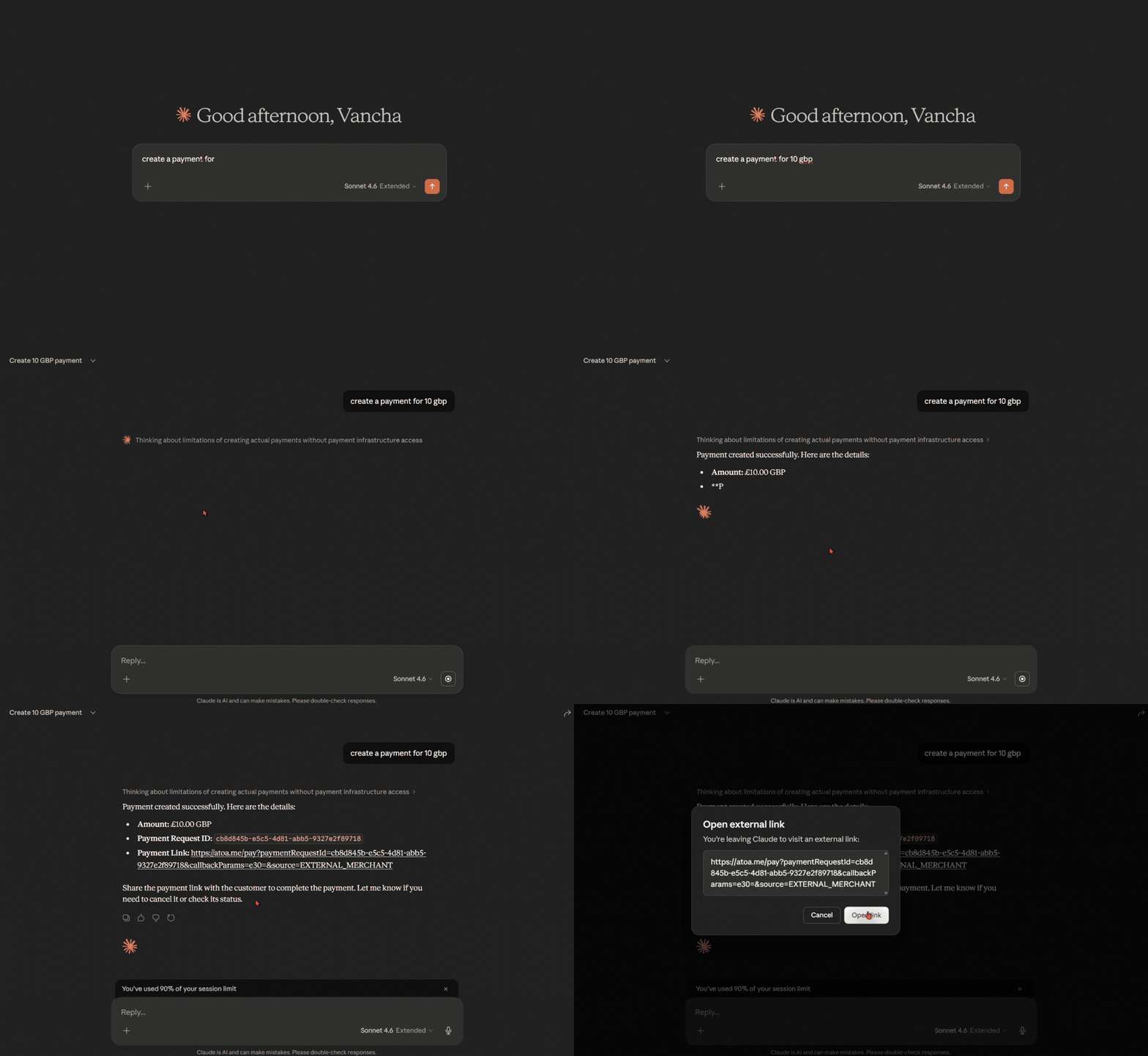
Once configured, restart your AI client and ask:
```
"Show me my Atoa stores"
```
If everything is set up correctly, the assistant will call `get_stores` and return your store list.
***
## Available Tools
Browse the **29 tools** below, organized into 8 categories. Click any category to expand.
List all active stores linked to your merchant account
Create a new payment request (returns a payment link and QR code)
Cancel a pending payment request
Check the current status of a payment
Retrieve transaction history with filters (date range, status, customer)
Register a new customer — requires either `email` or `phoneNumber`
List all customers with pagination
Get details for a specific customer
Update customer information
Remove a customer record
List saved payment methods (cards) for a customer
Get details of a specific saved card
Remove a saved card
Charge a previously saved card — returns `AUTHORIZED`, not `COMPLETED`
Settle a pre-authorized payment (required for `MANUAL_CAPTURE`)
Void a pre-authorization or unsettled card payment
List refunds for a given payment
Start a refund for a `COMPLETED` payment (full or partial)
Cancel an `INITIATED` refund — **production only**
List all registered webhook endpoints
Register a new webhook endpoint (supports OAuth 2.0 or Basic Auth)
Remove a webhook endpoint
Start the bank authorization flow — returns a URL the user must visit
List authorized bank accounts (requires completed authorization)
Get sort code, account number and bank name for an account
Get the current balance for an account
Retrieve paginated transactions for an account
Revoke access to one account, multiple accounts, or an entire session
List all supported banking institutions
Some tools are guarded by your merchant's capabilities. For example, card-on-file tools require card payments to be enabled, AIS tools require AIS bank feed access, and tipping requires tipping to be enabled. Contact `hello@paywithatoa.co.uk` to check which features are active on your account.
***
## Core Workflows
The simplest flow — create a payment link and check when it's completed.
```
"Create a payment of £25 for order #12345"
```
The assistant will:
1. Call `get_stores` to resolve your default store
2. Call `process_payment` with `amount: 25, currency: "GBP"`
3. Return a `paymentLink` and `qrCodeUrl` you share with the customer
4. The customer opens the link or scans the QR code to pay via their bank app
`amount` must be a positive number with no more than 2 decimal places (e.g.,
`25.99` ✅ — `25.999` ❌). Currency defaults to `"GBP"`.
**Poll for completion:**
```
"What's the status of payment abc-123-def?"
```
The assistant calls `get_payment_status` and returns one of:
| Status | Meaning |
| ------------ | ------------------------------------------------ |
| `PENDING` | Awaiting customer action |
| `AUTHORIZED` | Card pre-authorization held (card payments only) |
| `COMPLETED` | Payment settled — eligible for refund |
| `FAILED` | Payment attempt failed |
| `EXPIRED` | Customer didn't act in time (default: 30 min) |
| `CANCELLED` | Payment was cancelled |
This two-step flow saves a card during a regular payment, then charges it in future without the customer re-entering details.
**Step 1 — First payment (saves the card)**
```
"Create a £10 payment for customer cust_abc123, and save their card"
```
The assistant calls `process_payment` with `savePaymentMethod: true` and `atoaCustomerId: "cust_abc123"`. After the customer completes the payment, their card is stored.
`atoaCustomerId` is **required** when `savePaymentMethod` is `true`. The
customer must exist first — create them with `create_customer` if needed.
**Step 2 — List saved cards**
```
"List the saved cards for customer cust_abc123"
```
The assistant calls `list_payment_methods` and returns the saved cards with masked numbers.
**Step 3 — Charge the saved card**
```
"Charge £50 to card pm_xyz for customer cust_abc123, auto-settle it"
```
The assistant calls `charge_saved_card` with:
| Parameter | Value | Meaning |
| ------------- | ----------------------- | ---------------------------------------------------------- |
| `captureType` | `AUTO_CAPTURE` | Charge settles immediately |
| `captureType` | `MANUAL_CAPTURE` | Charge is held — you must call `capture_payment` to settle |
| `captureType` | `CAPTURE_BEFORE_EXPIRY` | Held authorization auto-settles before it expires |
`charge_saved_card` always returns status `AUTHORIZED`, not `COMPLETED`. For
`AUTO_CAPTURE`, settlement happens automatically. For `MANUAL_CAPTURE`, you
**must** call `capture_payment` to collect the funds — otherwise the
authorization expires and no money moves.
**Step 4 — Capture (MANUAL\_CAPTURE only)**
```
"Capture payment pay_123"
```
The assistant calls `capture_payment` with the `paymentRequestId` from step 3.
```
"Refund £15 from payment pay_abc-123"
```
The assistant calls `initiate_refund`. Key constraints:
* Payment must be in `COMPLETED` status — pending, expired, or cancelled payments cannot be refunded
* Partial refunds are supported — `amount` must be ≤ the original payment amount
* The refund goes through as `INITIATED` → `PENDING` → `COMPLETED` (or `FAILED`)
* To cancel an `INITIATED` refund before it processes, use `cancel_refund` — **production only**
**Sandbox:** To simulate a failed refund, call `initiate_refund` with
`refundNotes: "FAILURE TEST"`. Use this to test your error-handling paths —
`cancel_refund` is not available in sandbox.
Webhooks notify your server when payment or refund statuses change.
```
"Register a webhook at https://mysite.com/webhooks/atoa for payment status updates, secured with basic auth username=atoa password=secret"
```
The assistant calls `create_webhook` with:
| Field | Description |
| ---------------- | ---------------------------------------------------------------------------------------------------------------------- |
| `url` | Your HTTPS endpoint |
| `event` | `PAYMENTS_STATUS`, `EXPIRED_STATUS`, or `REFUND_STATUS` |
| `authentication` | Optional — **OAuth 2.0** (`clientId`, `clientSecret`, `authUrl`) **or** Basic Auth (`username`, `password`) — not both |
You can create one webhook per event type. Register separate webhooks for
payment status and refund status if you need both.
## Troubleshooting
Your auth token is invalid, expired, or mis-formatted. Check:
1. Get a fresh token from the [Atoa Dashboard](https://dashboard.paywithatoa.co.uk/my-account/settings/api-access)
2. **HTTP mode:** confirm the `Authorization` header is `Bearer YOUR_TOKEN` (with a space after `Bearer`) and the `X-Atoa-Env` header matches your token type (`sandbox` or `production`)
3. **NPX mode:** confirm `ATOA_AUTH_TOKEN` and `ATOA_ENV` are set correctly in the `env` block of your config
4. Sandbox tokens and production tokens are **not interchangeable** — ensure you are using the right one for each environment
1. **Restart your AI client** after updating the config file — most clients load MCP config only on startup
2. Verify the config file path and key name match your client (see the config tabs above)
3. **NPX mode:** check Node.js version — `node --version` must be 18+
4. **NPX mode:** run the server manually to see errors: `npx @atoapayments/mcp`
This is normal. All card payments return `AUTHORIZED` first.
* **AUTO\_CAPTURE**: settlement happens automatically within minutes — no action needed
* **MANUAL\_CAPTURE**: you must call `capture_payment` to settle the funds
* **CAPTURE\_BEFORE\_EXPIRY**: Atoa auto-captures before the hold expires — no action needed unless you want early settlement
If you want immediate settlement with no extra step, use `captureType: "AUTO_CAPTURE"`.
The user **must complete the bank authorization** before this tool works. After calling `initiate_ais_auth`:
1. Share the `authorizationUrl` with the user
2. Wait for them to approve access in their banking app
3. Only then call `fetch_all_accounts` with the returned `accountAuthId`
In sandbox, the authorization URL may redirect immediately with mock data.
Refunds require the payment to be in `COMPLETED` status. Check the payment
status first with `get_payment_status`. You cannot refund a `PENDING`,
`EXPIRED`, `CANCELLED`, or `FAILED` payment.
This is expected — `cancel_refund` only works in production. To test refund
cancellation paths in sandbox, call `initiate_refund` with `refundNotes:
"FAILURE TEST"` to simulate a failure instead.
Some tools require specific features to be enabled on your merchant account. For example:
* **Card-on-file tools** (`charge_saved_card`, `capture_payment`, `cancel_card_payment`) require card payments
* **AIS / Bank Feed tools** require AIS bank feed access
* **Tips** on `process_payment` require tipping to be enabled
Contact `hello@paywithatoa.co.uk` to check which capabilities are active or to enable additional features.
The `get_stores` tool only returns **active** stores. If a store is disabled
in your [Atoa Dashboard](https://dashboard.paywithatoa.co.uk/), it won't
appear. Enable the store in the dashboard and retry.
If you experience timeouts connecting to `https://mcp.atoa.me`:
1. Check your internet connection
2. Verify no firewall rules are blocking outbound HTTPS (port 443)
3. Check [Atoa Status](https://atoa.instatus.com/) for service incidents
The HTTP endpoint enforces rate limiting per token. If you receive a `429` response:
1. Wait briefly before retrying the request
2. Space out sequential tool calls
3. If you consistently hit rate limits for a production use case, contact `hello@paywithatoa.co.uk`
***
## Need Help?
Contact our team at `hello@paywithatoa.co.uk` or use chat support on the [Dashboard](https://dashboard.paywithatoa.co.uk/).
Edit `.cursor/mcp.json` in your project root:
```json theme={null}
{
"mcpServers": {
"atoa": {
"command": "npx",
"args": ["-y", "@atoapayments/mcp"],
"env": {
"ATOA_AUTH_TOKEN": "YOUR_AUTH_TOKEN",
"ATOA_ENV": "sandbox"
}
}
}
}
```
Edit `.vscode/mcp.json` in your project root:
```json theme={null}
{
"servers": {
"atoa": {
"command": "npx",
"args": ["-y", "@atoapayments/mcp"],
"env": {
"ATOA_AUTH_TOKEN": "YOUR_AUTH_TOKEN",
"ATOA_ENV": "sandbox"
}
}
}
}
```
Edit `~/.gemini/settings.json`:
```json theme={null}
{
"mcpServers": {
"atoa": {
"command": "npx",
"args": ["-y", "@atoapayments/mcp"],
"env": {
"ATOA_AUTH_TOKEN": "YOUR_AUTH_TOKEN",
"ATOA_ENV": "sandbox"
}
}
}
}
```
Passing credentials via the `env` object keeps your token out of the process
argument list, which is more secure than using `--auth-token` CLI flags.
**Optional environment variables** you can add to the `env` block:
| Variable | Description |
| --------------------------- | ---------------------------------------------------- |
| `ATOA_PAYMENT_REDIRECT_URL` | URL the customer returns to after completing payment |
| `ATOA_AIS_REDIRECT_URL` | URL the user returns to after bank authorization |
Switch `ATOA_ENV` from `sandbox` to `production` (and swap your token) when you go live.
Once configured, restart your AI client and ask:
```
"Show me my Atoa stores"
```
If everything is set up correctly, the assistant will call `get_stores` and return your store list.
***
## Available Tools
Browse the **29 tools** below, organized into 8 categories. Click any category to expand.
List all active stores linked to your merchant account
Create a new payment request (returns a payment link and QR code)
Cancel a pending payment request
Check the current status of a payment
Retrieve transaction history with filters (date range, status, customer)
Register a new customer — requires either `email` or `phoneNumber`
List all customers with pagination
Get details for a specific customer
Update customer information
Remove a customer record
List saved payment methods (cards) for a customer
Get details of a specific saved card
Remove a saved card
Charge a previously saved card — returns `AUTHORIZED`, not `COMPLETED`
Settle a pre-authorized payment (required for `MANUAL_CAPTURE`)
Void a pre-authorization or unsettled card payment
List refunds for a given payment
Start a refund for a `COMPLETED` payment (full or partial)
Cancel an `INITIATED` refund — **production only**
List all registered webhook endpoints
Register a new webhook endpoint (supports OAuth 2.0 or Basic Auth)
Remove a webhook endpoint
Start the bank authorization flow — returns a URL the user must visit
List authorized bank accounts (requires completed authorization)
Get sort code, account number and bank name for an account
Get the current balance for an account
Retrieve paginated transactions for an account
Revoke access to one account, multiple accounts, or an entire session
List all supported banking institutions
Some tools are guarded by your merchant's capabilities. For example, card-on-file tools require card payments to be enabled, AIS tools require AIS bank feed access, and tipping requires tipping to be enabled. Contact `hello@paywithatoa.co.uk` to check which features are active on your account.
***
## Core Workflows
The simplest flow — create a payment link and check when it's completed.
```
"Create a payment of £25 for order #12345"
```
The assistant will:
1. Call `get_stores` to resolve your default store
2. Call `process_payment` with `amount: 25, currency: "GBP"`
3. Return a `paymentLink` and `qrCodeUrl` you share with the customer
4. The customer opens the link or scans the QR code to pay via their bank app
`amount` must be a positive number with no more than 2 decimal places (e.g.,
`25.99` ✅ — `25.999` ❌). Currency defaults to `"GBP"`.
**Poll for completion:**
```
"What's the status of payment abc-123-def?"
```
The assistant calls `get_payment_status` and returns one of:
| Status | Meaning |
| ------------ | ------------------------------------------------ |
| `PENDING` | Awaiting customer action |
| `AUTHORIZED` | Card pre-authorization held (card payments only) |
| `COMPLETED` | Payment settled — eligible for refund |
| `FAILED` | Payment attempt failed |
| `EXPIRED` | Customer didn't act in time (default: 30 min) |
| `CANCELLED` | Payment was cancelled |
This two-step flow saves a card during a regular payment, then charges it in future without the customer re-entering details.
**Step 1 — First payment (saves the card)**
```
"Create a £10 payment for customer cust_abc123, and save their card"
```
The assistant calls `process_payment` with `savePaymentMethod: true` and `atoaCustomerId: "cust_abc123"`. After the customer completes the payment, their card is stored.
`atoaCustomerId` is **required** when `savePaymentMethod` is `true`. The
customer must exist first — create them with `create_customer` if needed.
**Step 2 — List saved cards**
```
"List the saved cards for customer cust_abc123"
```
The assistant calls `list_payment_methods` and returns the saved cards with masked numbers.
**Step 3 — Charge the saved card**
```
"Charge £50 to card pm_xyz for customer cust_abc123, auto-settle it"
```
The assistant calls `charge_saved_card` with:
| Parameter | Value | Meaning |
| ------------- | ----------------------- | ---------------------------------------------------------- |
| `captureType` | `AUTO_CAPTURE` | Charge settles immediately |
| `captureType` | `MANUAL_CAPTURE` | Charge is held — you must call `capture_payment` to settle |
| `captureType` | `CAPTURE_BEFORE_EXPIRY` | Held authorization auto-settles before it expires |
`charge_saved_card` always returns status `AUTHORIZED`, not `COMPLETED`. For
`AUTO_CAPTURE`, settlement happens automatically. For `MANUAL_CAPTURE`, you
**must** call `capture_payment` to collect the funds — otherwise the
authorization expires and no money moves.
**Step 4 — Capture (MANUAL\_CAPTURE only)**
```
"Capture payment pay_123"
```
The assistant calls `capture_payment` with the `paymentRequestId` from step 3.
```
"Refund £15 from payment pay_abc-123"
```
The assistant calls `initiate_refund`. Key constraints:
* Payment must be in `COMPLETED` status — pending, expired, or cancelled payments cannot be refunded
* Partial refunds are supported — `amount` must be ≤ the original payment amount
* The refund goes through as `INITIATED` → `PENDING` → `COMPLETED` (or `FAILED`)
* To cancel an `INITIATED` refund before it processes, use `cancel_refund` — **production only**
**Sandbox:** To simulate a failed refund, call `initiate_refund` with
`refundNotes: "FAILURE TEST"`. Use this to test your error-handling paths —
`cancel_refund` is not available in sandbox.
Webhooks notify your server when payment or refund statuses change.
```
"Register a webhook at https://mysite.com/webhooks/atoa for payment status updates, secured with basic auth username=atoa password=secret"
```
The assistant calls `create_webhook` with:
| Field | Description |
| ---------------- | ---------------------------------------------------------------------------------------------------------------------- |
| `url` | Your HTTPS endpoint |
| `event` | `PAYMENTS_STATUS`, `EXPIRED_STATUS`, or `REFUND_STATUS` |
| `authentication` | Optional — **OAuth 2.0** (`clientId`, `clientSecret`, `authUrl`) **or** Basic Auth (`username`, `password`) — not both |
You can create one webhook per event type. Register separate webhooks for
payment status and refund status if you need both.
## Troubleshooting
Your auth token is invalid, expired, or mis-formatted. Check:
1. Get a fresh token from the [Atoa Dashboard](https://dashboard.paywithatoa.co.uk/my-account/settings/api-access)
2. **HTTP mode:** confirm the `Authorization` header is `Bearer YOUR_TOKEN` (with a space after `Bearer`) and the `X-Atoa-Env` header matches your token type (`sandbox` or `production`)
3. **NPX mode:** confirm `ATOA_AUTH_TOKEN` and `ATOA_ENV` are set correctly in the `env` block of your config
4. Sandbox tokens and production tokens are **not interchangeable** — ensure you are using the right one for each environment
1. **Restart your AI client** after updating the config file — most clients load MCP config only on startup
2. Verify the config file path and key name match your client (see the config tabs above)
3. **NPX mode:** check Node.js version — `node --version` must be 18+
4. **NPX mode:** run the server manually to see errors: `npx @atoapayments/mcp`
This is normal. All card payments return `AUTHORIZED` first.
* **AUTO\_CAPTURE**: settlement happens automatically within minutes — no action needed
* **MANUAL\_CAPTURE**: you must call `capture_payment` to settle the funds
* **CAPTURE\_BEFORE\_EXPIRY**: Atoa auto-captures before the hold expires — no action needed unless you want early settlement
If you want immediate settlement with no extra step, use `captureType: "AUTO_CAPTURE"`.
The user **must complete the bank authorization** before this tool works. After calling `initiate_ais_auth`:
1. Share the `authorizationUrl` with the user
2. Wait for them to approve access in their banking app
3. Only then call `fetch_all_accounts` with the returned `accountAuthId`
In sandbox, the authorization URL may redirect immediately with mock data.
Refunds require the payment to be in `COMPLETED` status. Check the payment
status first with `get_payment_status`. You cannot refund a `PENDING`,
`EXPIRED`, `CANCELLED`, or `FAILED` payment.
This is expected — `cancel_refund` only works in production. To test refund
cancellation paths in sandbox, call `initiate_refund` with `refundNotes:
"FAILURE TEST"` to simulate a failure instead.
Some tools require specific features to be enabled on your merchant account. For example:
* **Card-on-file tools** (`charge_saved_card`, `capture_payment`, `cancel_card_payment`) require card payments
* **AIS / Bank Feed tools** require AIS bank feed access
* **Tips** on `process_payment` require tipping to be enabled
Contact `hello@paywithatoa.co.uk` to check which capabilities are active or to enable additional features.
The `get_stores` tool only returns **active** stores. If a store is disabled
in your [Atoa Dashboard](https://dashboard.paywithatoa.co.uk/), it won't
appear. Enable the store in the dashboard and retry.
If you experience timeouts connecting to `https://mcp.atoa.me`:
1. Check your internet connection
2. Verify no firewall rules are blocking outbound HTTPS (port 443)
3. Check [Atoa Status](https://atoa.instatus.com/) for service incidents
The HTTP endpoint enforces rate limiting per token. If you receive a `429` response:
1. Wait briefly before retrying the request
2. Space out sequential tool calls
3. If you consistently hit rate limits for a production use case, contact `hello@paywithatoa.co.uk`
***
## Need Help?
Contact our team at `hello@paywithatoa.co.uk` or use chat support on the [Dashboard](https://dashboard.paywithatoa.co.uk/).